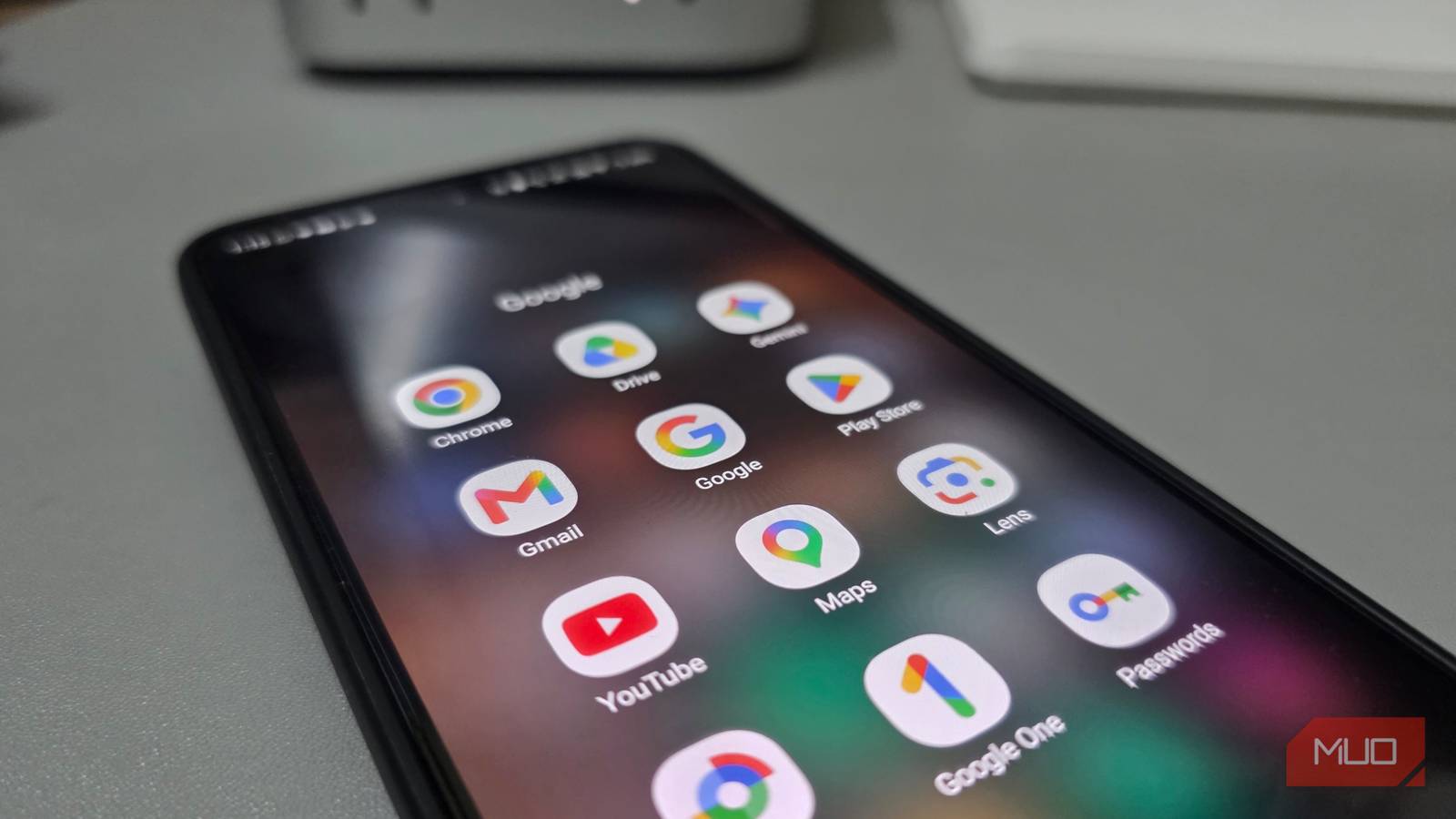
Unmasking the Real Android Battery Drain Culprit: It's Not Always Google Play Services
Ever stared at your Android's battery usage stats, feeling that familiar pang of frustration as a seemingly innocuous entry, Google Play Services, sits near the top? It looks like the obvious villain, mercilessly siphoning away your precious charge even when your screen is off. You might be tempted to restrict it, force-stop it, or even try to disable it entirely.
Stop right there. That's a trap. While Google Play Services appears to be the prime offender, it's often just a convenient scapegoat, taking the hit for another app that's secretly pulling its strings. Disabling it is a surefire way to break essential functions like notifications, the Play Store, Maps, and even app sign-ins. You’ll gain a few minutes of battery, but lose critical phone functionality – a terrible trade-off.
Understanding How Google Play Services Acts as a Battery Drain Proxy
Think of Google Play Services as the unsung hero, the vital backend infrastructure for your Android device. It's not an app you directly interact with, but rather a collection of APIs and services that enable everything from location requests and account syncing to push notifications for both Google's own apps and third-party applications.
When an app needs to do something in the background – fetch data, check for updates, or maintain a persistent connection – it often makes a request through Google Play Services. So, while Play Services appears to be consuming a lot of power, it's actually just doing the heavy lifting on behalf of another app. It's the highly visible processing engine, not necessarily the driver pressing the accelerator.
The True Battery Hog: The Google App and Its Hidden Habits
In many cases, the real battery vampire is an app you probably use constantly, but wouldn't suspect: the Google app itself. Yes, the very app that brings you search, Assistant, and personalized news feeds can be relentlessly consuming power behind the scenes. Its location access, voice features, and continuous background syncing frequently call on Play Services to stay active, utilizing "wake locks" that prevent your processor from truly sleeping.
Our investigation revealed that once these hidden power drains were addressed, a single charge lasted nearly two additional hours. Here's how to take back control.
How to Fix Google App Battery Drain on Android: Three Key Hacks
Ready to dramatically improve your Android's battery life? These actionable steps focus on curtailing the Google app's excessive background activity.
1. Silence the Scroll: Disabling the Google Discover Feed
The Discover feed, that personalized stream of news and articles accessible via the Google app (or a left swipe on some home screens), is a major culprit. To ensure it loads instantly, it's constantly fetching articles and images in the background, keeping your data connection active and preventing your phone from entering deep sleep.
Here’s how to turn it off:
- Open the Google app.
- Tap your profile picture (usually top-right).
- Go to Settings.
- Select Other settings (sometimes "General" or "Search settings").
- Toggle off Discover.
Note: Some phone manufacturers offer a separate home-screen toggle for the Discover page, so check your launcher settings too.
2. Mute the Mic: Turning Off "Hey Google" in Gemini
The "Hey Google" or "Ok Google" voice activation feature is convenient, but it means your phone's microphone is constantly listening for the wake word. This continuous listening prevents your processor from resting, leading to subtle but persistent battery drain.
Here's how to disable it:
- Open the Gemini app (or the Google Assistant settings, depending on your device).
- Tap the Menu icon (if applicable), then your profile picture.
- Go to Settings.
- Under "Talk to Gemini hands-free" (or similar for Google Assistant), toggle off 'Hey Google' or 'Voice Match'.
What you lose: Hands-free voice activation.
What you gain: Significant battery life, and you can still open Gemini/Assistant manually whenever you need it. Be aware that for some users, turning off 'Hey Google' in Gemini may entirely disable Gemini's chat feature unless manually activated.
3. Restrict Background Activity for the Google App
Even after disabling Discover and "Hey Google," the Google app can still wake up and perform various background tasks. Limiting its ability to run wild in the background is a powerful final step.
Here’s how:
- Go to your phone’s Settings.
- Tap Apps (or "Apps & notifications").
- Find and select the Google app.
- Tap Battery (or "Battery usage").
- Choose Restricted (or "Optimized" / "Deep sleeping app" depending on your Android version/manufacturer).
This setting limits the app's background jobs, scheduled tasks, and network activity. Give it a day of normal use and observe any impact. If you notice any crucial features not working as expected, you can always revert this setting.
Google's Big Push: New Policies Against Excessive Wake Locks and Battery Drain
It's not just individual users grappling with rogue apps. Google itself has recognized the problem of "partial wake locks"—legitimate system calls that let an app keep the processor running after the screen turns off to finish important work. While necessary for downloads or time-sensitive tasks, excessive or prolonged wake locks are a major cause of background battery drain.
In late 2025, Google, in collaboration with Samsung, started to aggressively address this. They refined how wake lock usage is measured and made strict wake lock tracking a core quality standard on the Play Store.
Under this new policy, an app is considered to have "excessive" wake lock usage if it holds non-exempt partial wake locks for more than two cumulative hours in a day while the screen is off and the app is in the background. (Exemptions apply for things like audio playback, active location services, or user-initiated background tasks).
The consequences for developers are significant: if more than 5% of an app's user sessions cross this threshold over a 28-day period, Google may:
- Exclude the app from recommendation surfaces on the Play Store.
- Display a prominent warning on the app's store listing, informing users that the app "may cause their device's battery to drain faster."
Enforcement of these new standards began rolling out on March 1, 2026. This means that going forward, developers have a strong incentive to optimize their apps for battery efficiency, leading to a better experience for all Android users.
Verifying Your Battery Gains: Check Your Background Usage
After implementing these changes, give your phone a full day of normal use. Then, go back to Settings > Battery and open Battery usage. Look specifically at the Google app's background time. If it has significantly dropped, congratulations – your changes are working! While you’re there, take a moment to identify any other apps showing high background usage that you didn't actively interact with that day. They might be your next targets for optimization.
A leaner, longer-lasting Android experience is within reach. By understanding why your battery drains and taking proactive steps, you can reclaim hours of precious power and truly dictate how your device performs.
What battery-saving hacks have you discovered? Share your insights and keep the conversation buzzing in the comments below!